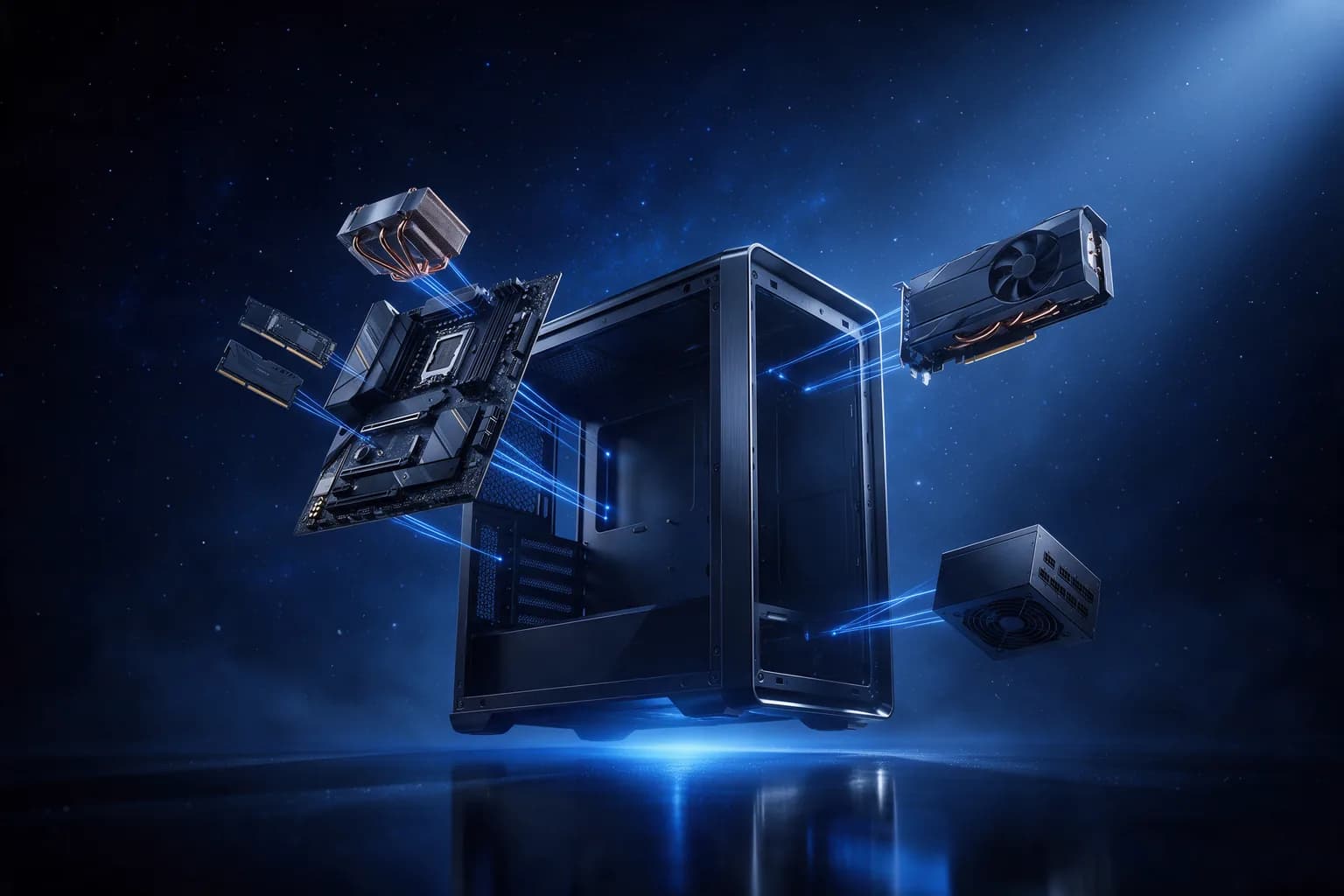
How to build your own PC
The order makes the work easy: motherboard, CPU, cooler and memory go together outside the case, and only then does the whole thing get screwed in. The mistakes that cost time are almost always power that is not plugged in, or memory that is not fully seated.

Building a PC is easier than it looks. Parts only fit in one place, and they can barely be inserted the wrong way. The hard part is choosing components that fit together — the rest is screwing things in.
The five things that must match
Choose in this order, and each choice narrows the next:
- The processor decides the socket. The motherboard must have exactly that socket — there is no in-between.
- The motherboard decides the memory generation, DDR4 or DDR5, and how many modules there is room for.
- The case decides how long a graphics card and how tall a cooler will fit. Measure, rather than hope.
- The power supply has to handle the graphics card with headroom. The manufacturer states a recommended wattage — follow it.
- The motherboard also decides the number of M.2 slots for SSDs. Two is nice, one is enough for most people.
The order of assembly
Fit the processor, memory and M.2 drive to the motherboard while it is lying on the table. There is far more room there than down in the case, and this is the mistake people most often regret.
Then the motherboard goes into the case, then the power supply, and the graphics card last. Route the cables behind the tray while there is still room for your hands.
The classic mistakes
Four things are behind almost every machine that will not start the first time:
- The extra 8-pin CPU power connector at the top of the board is not plugged in. The machine is completely dead.
- Memory is in the wrong slots. The manual says which two to use when you only have two modules.
- The monitor is plugged into the motherboard output instead of the graphics card. The screen is black even though everything works.
- The standoffs between case and motherboard are missing or misplaced. That shorts the board against the tray.
First boot
Go into the BIOS first. Check that the processor, all the memory and the drive are there, and switch on XMP or EXPO so the memory runs at the speed you paid for. Then install Windows from a USB stick.
If you would rather have it done
If you would rather have it built, we can do that — either from scratch or by upgrading the machine you already have. Write to us with what it is for.
Write to usWhere to go next
Questions we get about this
In what order should the parts be chosen?
The processor decides the socket, and the motherboard has to have exactly that socket. The motherboard decides the memory generation and how many modules fit. The case decides how long a graphics card and how tall a cooler can be. The power supply has to handle the graphics card with headroom. Choose in that order and each choice locks the next.
Should the motherboard be assembled in the case?
No. Fit the processor, memory and M.2 drive to the motherboard while it is lying on the table. There is far more room there than down in the case, and it is the mistake people most often regret.
The PC will not start the first time — what is it usually?
Four things are behind nearly all of them. The extra 8-pin processor power connector is not plugged in, and the machine is completely dead. The memory is in the wrong sockets. The monitor is plugged into the motherboard's output instead of the graphics card's, so the picture is black although everything works. Or the standoffs between case and motherboard are missing and short the board against the plate.
What should be done the first time the machine starts?
Go into the BIOS first. Check that the processor, all the memory and the drive are there, and turn on XMP or EXPO so the memory runs at the speed you paid for. Then install Windows from a USB stick.
More from Knowledge
- Windows 11 on an older machine: what does it take?Why a working machine is suddenly not allowed to update — and what the options are.
- How to erase data before selling or scrapping a computerFormatting is not erasing. The difference gets expensive if it is a company machine.
- Windows 10 support has ended — what now?The machines do not stop working — but the security updates have stopped. How to work out what happens to which.